
How to Scan Old Photos for a Memorial Book: A Careful 7-Step Guide
A careful seven-step workflow for choosing a capture method, protecting original photographs, creating useful master files, and checking every scan.
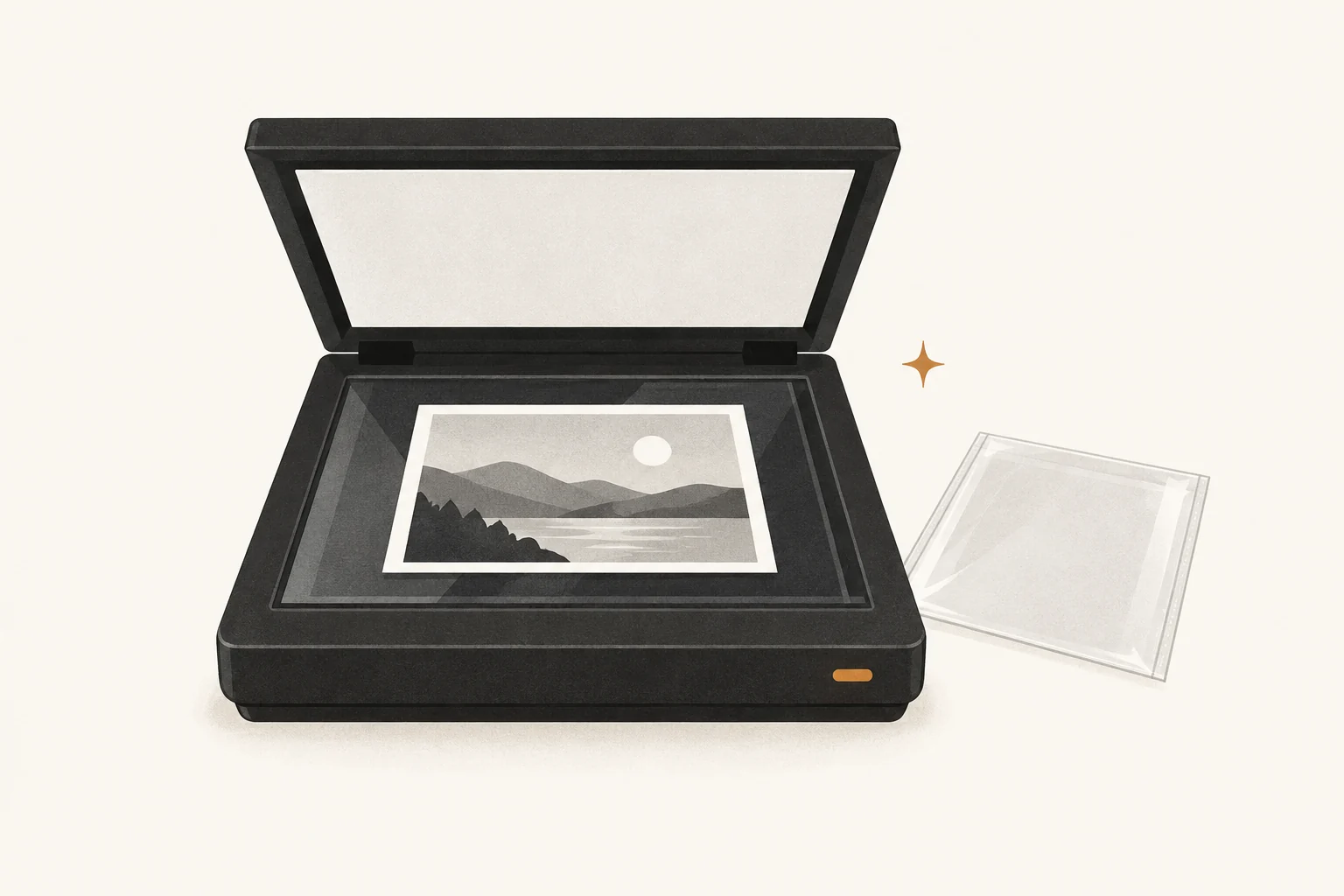
To scan old photos for a memorial book, begin with stable, flat prints; capture the front and any meaningful writing on the back; save a high-quality master; and inspect every file before returning the original to storage. A flatbed scanner is usually the simplest tool for loose prints, but a carefully positioned phone or a professional service can be the safer choice in other cases.
Digitizing gives you a working copy for cropping, captions, and book design while reducing repeated handling of the original. It does not make the original disposable. The National Archives advises keeping originals after digitization because digital files bring their own risks of loss and obsolescence.
If your photos need more than straightforward scanning, start with our guide to preserving photographs in a memorial scrapbook. It explains the larger workflow: handle the original carefully, make an access copy, and store the original apart from the book when appropriate.
Difficulty: Beginner
Estimated time: About 5–10 minutes per straightforward print, plus setup and backup time
Prerequisites: A stable photograph or small documented batch, enough storage for master files, and a separate backup destination
A good stopping point: One labeled envelope, small album section, or 10 photographs
What you will need
- A clean, uncluttered work surface away from food and drinks
- A flatbed scanner, a phone with a stable mount, or a selected scanning service
- A clean, soft brush for sound photographs with loose surface dust
- A computer or device with enough free storage for large master files
- A temporary tracking sheet for names, dates, original order, and filenames
- At least one separate place to copy the finished files
Do not add cleaning fluids, household wipes, canned air, tape, or glue to this list. Old photographic processes can react differently, and a treatment that appears harmless may alter the image surface.
Quick overview
| Step | Action | Approximate time |
|---|---|---|
| 1 | Set scope and preserve the original order | 10–20 minutes |
| 2 | Screen photographs for damage | 1–2 minutes each |
| 3 | Choose a flatbed, phone, or service | 10–30 minutes |
| 4 | Select practical capture settings | 2–5 minutes |
| 5 | Capture fronts, backs, and context | 3–8 minutes each |
| 6 | Name and check the files | 2–5 minutes each |
| 7 | Back up files and rehouse originals | 15–30 minutes |
Step 1: Set a small scope and preserve the original order
Choose a batch you can finish and check in one sitting. Ten photographs is enough for a first session. If they came from an album, envelope, or labeled box, photograph the container and the arrangement before moving anything.
Original order can carry information: who kept the photos, which pictures were grouped, and which handwritten note belongs to which print. Give each item a temporary identifier such as BOX01-001, then use the same identifier for the scan and your notes.
If the back contains writing, plan for two files: BOX01-001-front.tif and BOX01-001-back.tif. Do not replace an uncertain date or identity with a confident guess. Record “approximately 1950s,” “possibly Ana,” or “unidentified” as such.
Small next step: Put 10 photographs in order, write temporary identifiers on a separate tracking sheet, and stop. The scanning can happen in another session.
Step 2: Screen each photograph before scanning
Handle photographs by their edges and support them with both hands. The National Archives’ photograph-care guidance warns against bending, back-rolling, or trying to separate photographs from mounts and album pages.
For a sound, flat print with loose dust, set it on a supported surface and use a clean, soft brush at an angle. Stop if the surface is flaking, cracked, sticky, powdery, wet, moldy, or attached to glass. Do not force a curled print flat under a scanner lid.
Warning: Home digitization is not a repair treatment. Stop before cleaning, flattening, separating, or applying moisture to a damaged original.
Use an overhead camera setup or seek professional advice when a photograph is:
- heavily curled, torn, creased, or brittle;
- stuck to glass, an album page, or another photograph;
- a cased image, glass plate, negative, slide, or unfamiliar process;
- affected by mold, water, fire, or a lifting image layer; or
- valuable enough that an unsuccessful attempt would be unacceptable.
The American Institute for Conservation’s photograph-care guide recommends contacting a photograph conservator for water or fire damage, flaking, delamination, or broken glass elements. Home scanning is preventive access work, not conservation treatment.
Step 3: Choose a flatbed scanner, phone, or scanning service
The right tool depends on the object, not on which device has the most impressive specification.
| Method | A good fit for | Main limitation |
|---|---|---|
| Flatbed scanner | Loose, stable, flat prints that fit fully on the glass | The lid or glass can stress curled, mounted, or fragile items |
| Phone or camera | Albums, oversized prints, framed items, or quick access copies | Glare, distortion, shadows, shake, and uneven colour are easy to introduce |
| Scanning service | Large batches, slides or negatives, or work needing specialist equipment | Shipping, handling, privacy, sequencing, cost, and uncertain file specifications |
For a flatbed, clean the glass according to the scanner maker’s directions and let it dry fully. Place one stable photograph on the glass without pressing or sliding it. If an original does not fit completely, do not close a lid onto it; the National Archives specifically cautions that a scanner lid can crush or crease an oversized item.
For a phone, use a rigid stand or copy setup rather than holding the device by hand. Keep the camera parallel to the print, use even light from both sides, switch off the flash, and include the full edge of the photograph. Phone capture is often useful for access, but reflections and automatic image processing can make it less predictable as a preservation master.
Before sending originals to a service, ask in writing:
- whether the work is completed in-house or subcontracted;
- how items are tracked and kept in order;
- whether fragile, mounted, or annotated items are accepted;
- which resolution, colour mode, file formats, and compression are supplied;
- whether fronts and backs cost extra;
- how files and temporary copies are protected and deleted;
- how originals are packed, insured, shipped, and returned; and
- what happens if an item is lost or damaged.
Make a small test order before shipping an irreplaceable collection. A service can reduce your workload, but it also adds transit, custody, and privacy risks.
Tip: Ask a service for one sample scan and its full technical settings before sending the rest of the collection.
Step 4: Select settings for a useful master and access copy
Resolution should follow the size of the original and the intended output. Current National Archives digitization requirements, based on the 2023 third edition of the FADGI guidelines, require at least 400 pixels per inch (ppi) at original size for federal photographic prints and fine-detail paper records. That institutional requirement is not a rule for a family project, but it is a useful quality baseline. For family prints, 600 ppi at the original dimensions is a practical starting point when storage permits; it gives more room for moderate enlargement and small details.
More ppi is not automatically more real detail. A low-quality scanner may interpolate—create pixels rather than capture them—and a soft or tiny original has a finite amount of information. Scan one representative print at 400, 600, and, if available, a higher optical setting. Compare faces, handwriting, grain, file size, and the print size you actually need.
Use these starting choices:
- Colour mode: Scan colour prints in colour. Consider colour even for black-and-white prints when paper tone, retouching, stains, or annotations matter; grayscale is a smaller alternative for straightforward black-and-white access copies.
- Master file: TIFF with no compression or lossless compression when the scanner offers it. The Library of Congress explains why TIFF is commonly preferred for a master and JPEG for a working copy.
- Working copy: A high-quality JPEG for layout, email, and ordinary access. Make it from the master rather than repeatedly resaving a JPEG.
- Automatic corrections: Turn off aggressive sharpening, colour restoration, face enhancement, and dust removal for the first master scan. You can make an edited derivative later without overwriting the neutral capture.
These are household workflow recommendations, not a promise of archival permanence or a substitute for a digitization specification. Slides, negatives, very small prints, and significant collections need different capture targets and may justify specialist equipment.
Step 5: Capture the front, back, and enough context
Preview the scan and confirm that the whole photograph—including edges—is inside the capture area. Scan the front, then capture the back if it contains names, dates, studio marks, numbering, adhesive evidence, or other context. A blank back does not need its own file unless your project requires complete documentation.
If writing is faint, keep a neutral master and make a separate adjusted copy for reading. Never overwrite the first capture. If a photograph is inside a safe, clear sleeve and removal would increase risk, NARA notes that some photographs can be digitized through an uncoated polyester sleeve with extra care.
Keep related files together:
BOX01-001-front.tif
BOX01-001-back.tif
BOX01-001-front-access.jpg
Record the source separately: “blue envelope from Mara’s desk,” “page 12, top left,” or “loaned by James Chen.” That small note may be more valuable to a future reader than a perfect crop.
Step 6: Name, inspect, and compare every file
Open each master at 100% view before putting the original away. Check for clipped edges, blur, glare, Newton rings, dust, colour casts, missing annotations, and files that will not open. Compare the digital image with the original under ordinary, indirect light.
Use stable, descriptive filenames without turning uncertain information into fact. One workable pattern is:
approximately-1962-lee-family-picnic-source-maria-001-front.tif
For a large collection, a short identifier plus a spreadsheet is often easier to maintain. Track the filename, front/back relationship, people, place, estimated date, source or owner, restrictions, scan date, and any uncertainty.
Do not crop the only master tightly around the image or erase borders, writing, damage, and studio marks. Those features can help identify the process, maker, sequence, and history. Crop and retouch a duplicate for the memorial book.
Step 7: Back up the files and rehouse the originals
A scan is not finished until it exists in more than one place. Keep the working set on your computer, copy it to a separate storage device, and keep another copy away from the computer’s location. Our guide to a 3-2-1 backup for family photos and memory-book files turns that principle into a small household routine.
Return originals to suitable enclosures in their documented order. Do not mount them in the memorial book merely because they have been scanned. Copies are often the safer book material; the originals can remain in protective storage.
Finally, open several files from the backup—not just the working folder. A progress bar shows that a copy operation ran; a successful restore shows that the copy is usable.
Troubleshooting common scanning problems
The scan has strange rainbow rings
The photograph may be making uneven contact with scanner glass, producing interference patterns often called Newton rings. Do not press harder. Try a different safe orientation or an overhead capture, or ask a specialist about the photographic process.
The phone image is shaped like a trapezoid
The camera was not parallel to the photograph. Use a level, a rigid mount, and a grid overlay. Leave a small border for later perspective correction rather than cutting into the original edge.
The file is large but still soft
The setting may exceed the scanner’s true optical resolution, or the original may not contain more detail. Compare a 600 ppi test with the larger file at the same viewing scale. Keep the smaller setting if the larger file adds no meaningful information.
The photograph will not lie flat
Do not force it under a lid or back-roll it. Use an overhead setup with support that respects the natural shape. If the print is brittle, tightly curled, cracked, or flaking, consult a photograph conservator.
Frequently asked questions
Should I scan old photos at 400 or 600 ppi?
Use 400 ppi as a current institutional baseline for photographic prints, while recognizing that a family workflow is not a federal digitization program. A 600 ppi capture is a practical household starting point for many small prints when you want moderate enlargement or closer detail. Test representative originals because size, sharpness, scanner optics, and output needs change the answer.
Is a phone scan good enough for a memorial book?
It can be, especially for an album page or a book printed at modest size. Use a stand, parallel alignment, even light, and a quality check. Preserve the unedited capture and avoid treating an automatically enhanced phone image as a guaranteed preservation master.
Should I scan the backs of photographs?
Yes when they contain handwriting, stamps, sequence numbers, dates, or other evidence. Pair front and back files with the same identifier so the context cannot drift away from the image.
Can I throw away duplicates after scanning?
Do not decide during the capture session. “Duplicates” may have different crops, annotations, print processes, or condition. Group them, record the differences, and make a separate appraisal decision when you have more energy and context.
Should I remove a photograph from an old album first?
Not if it resists, is adhered, or the album itself carries meaning. Photograph conservators are trained to assess mounts, adhesives, and image layers. A careful page-level capture is safer than an improvised removal.
Your next manageable step
Choose one envelope or 10 stable prints. Photograph their current order, assign identifiers, and make one test scan at 600 ppi in colour. Save a master and a working copy, inspect both, and copy them to a second device.
That is a complete first session. The memorial book can begin with one well-documented photograph; the rest of the collection can wait safely for another day.